 PJHTech Paper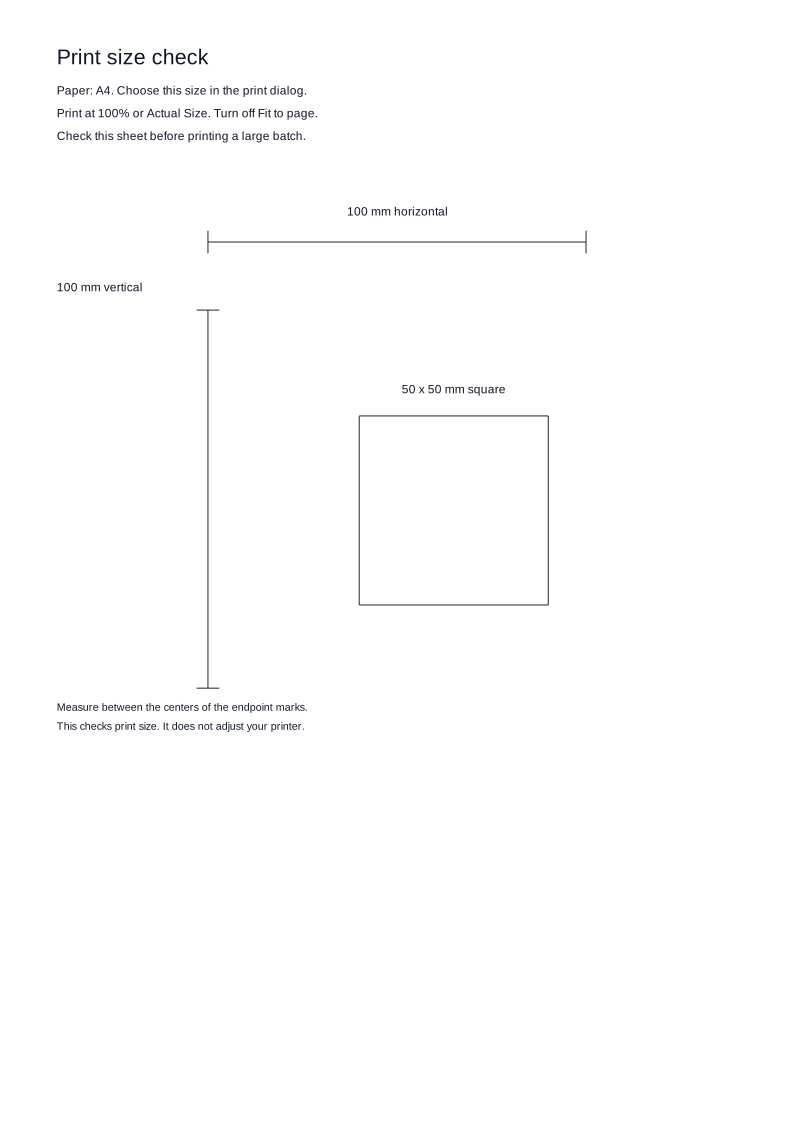
Print at actual size
A 5 mm grid should still measure 5 mm on paper. Check the print scale before making more copies.
Set up the print
- Download the PDF and open it in a PDF viewer.
- Load the paper you selected in the generator, then choose the same size in the print dialog.
- Choose Actual size or set the print scale to 100%.
- Check the preview, then print one page.
In Adobe Acrobat, look under Page Sizing & Handling > Size. Other PDF viewers may use different labels.
Fit and Shrink settings can change the pattern size. Actual size keeps the PDF scale. Your printer can still cut off anything outside its printable area.
Use the print size check
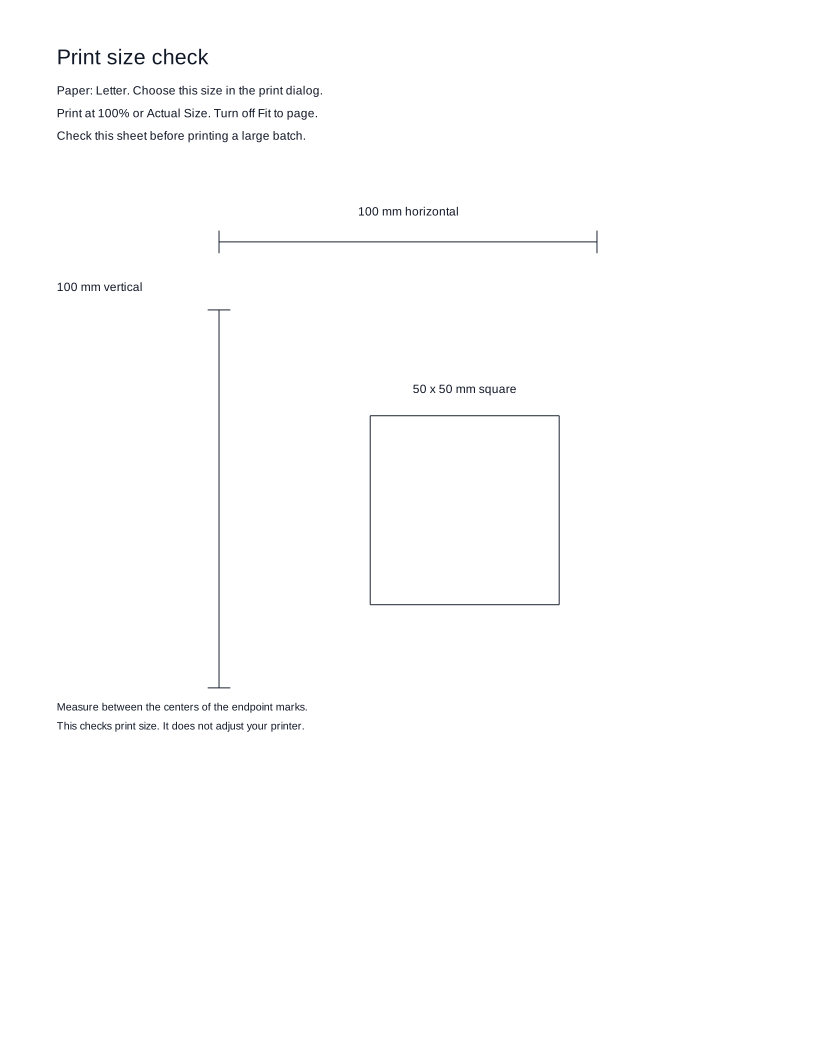
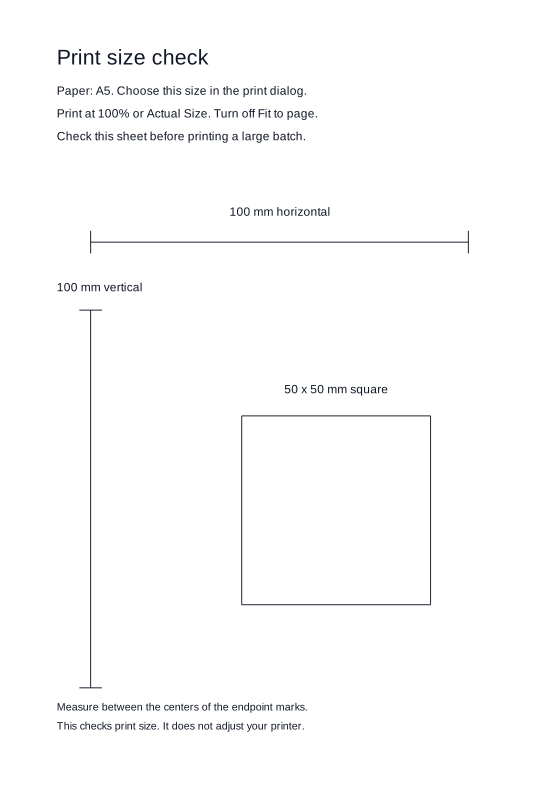
Download the check sheet that matches your paper size. It has two 100 mm reference lines and a 50 mm square.
Print one sheet, then measure between the center marks at each end of both lines. Check the square in both directions as well. If the measurements are wrong, review the print settings before printing a stack.
Measure several spaces
Use a ruler to check ten squares on a 5 mm graph grid. They should span 50 mm from the center of the first line to the center of the eleventh line.
On a dot grid, ten spaces run from the first dot to the eleventh dot. Count the gaps rather than the dots.
A longer measurement makes a small scaling error easier to notice.
If the result looks wrong
The pattern is too small or too large
Check the print scale and the selected paper size.
The pattern is cut off near an edge
Increase the page margins in the generator and download a new PDF.
The lines are hard to see
Increase the darkness or line thickness and print another sample.
One direction measures differently
Check both reference lines on the print size check. Keep the PDF at 100% and review the printer settings.